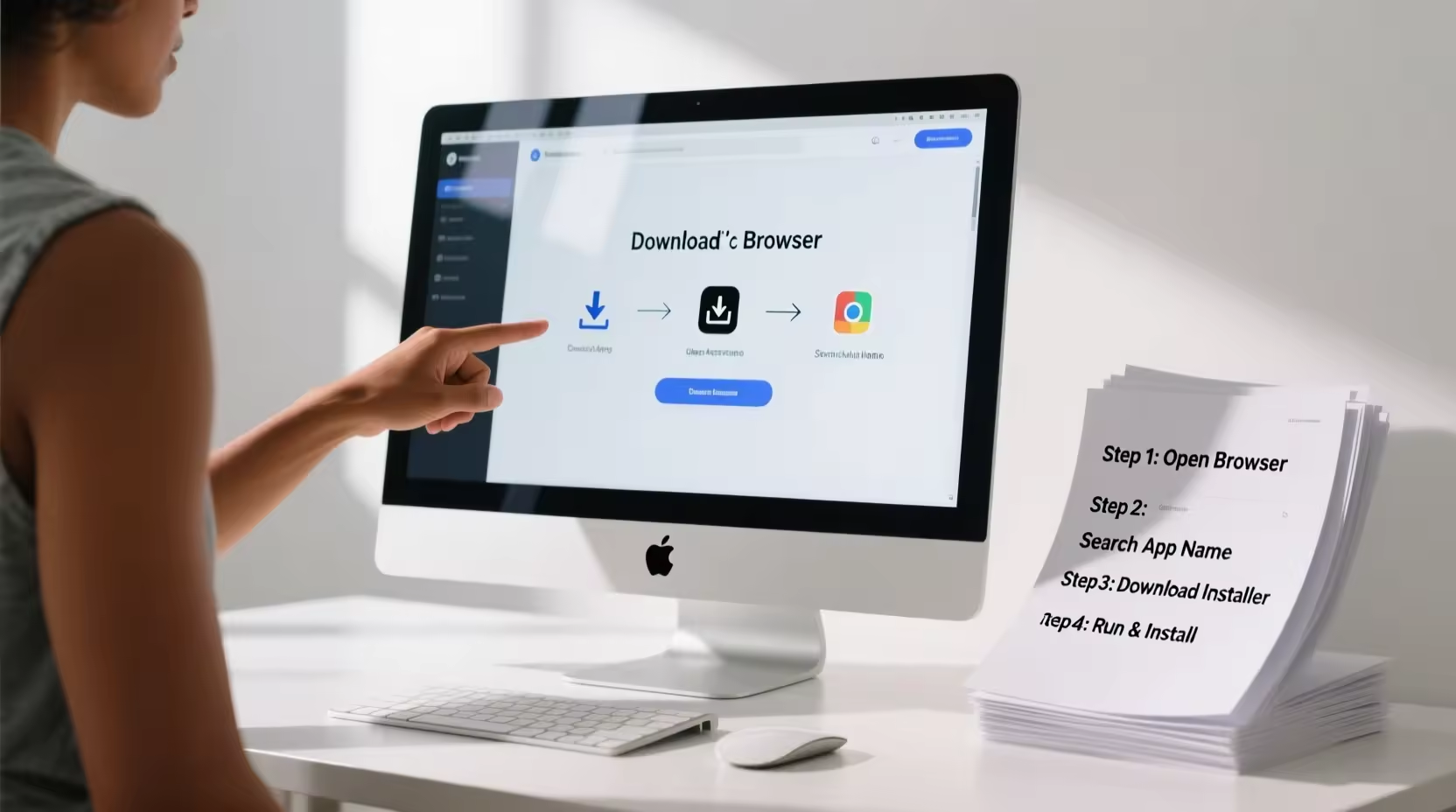
Introduction: When Installing Software Feels Confusing
A few years ago, I downloaded a simple tool for editing documents. It looked easy enough—just a quick download and install, right?
But within minutes I was confused.
The installer showed multiple options, asked about permissions, and suggested extra programs I didn’t even want. I wasn’t sure which buttons were safe to click. Like many people, I worried about installing something harmful or breaking my computer.
If you’ve ever felt the same, you’re not alone.
Many beginners struggle with installing new software because they don’t know:
-
Where to safely download programs
-
Which installation options to choose
-
How to avoid unwanted apps or malware
-
What to configure after installation
The good news is that installing software is actually simple once you understand the process. In this step-by-step guide, I’ll show you exactly how to download, install, and set up software safely on your computer, even if you’re a complete beginner.
Understanding Software Installation
Before diving into the steps, let’s quickly understand what “installing software” actually means.
Software installation is the process of:
-
Downloading a program file from the internet
-
Running the installer on your computer
-
Allowing the program to place files in the correct system folders
-
Setting up shortcuts and configuration settings
Once installed, the program becomes available to use anytime.
Most modern software provides automatic installation wizards, which guide you through the process.
Step 1: Download Software From a Trusted Source
The most important rule when installing software is always download from a trusted source.
Downloading from random websites can expose your computer to:
-
Malware
-
Spyware
-
Adware
-
Fake programs
Safe places to download software
Always use:
-
The official website of the software developer
-
Trusted software marketplaces
-
Verified app stores
Example
Instead of searching:
“Free video editor download”
Search:
“Official video editor website”
Then download directly from the developer.
Tip
Look for:
-
HTTPS secure websites
-
Verified publishers
-
Clear download buttons
Avoid sites full of pop-up ads and multiple download links.
Step 2: Check System Requirements
Before installing any program, check if your computer can run it.
Software usually lists system requirements, including:
-
Operating system version
-
Required RAM
-
Processor speed
-
Storage space
Example requirements
A typical program might require:
-
Windows 10 or later
-
4 GB RAM
-
500 MB storage
If your computer doesn’t meet these requirements, the software may:
-
Run slowly
-
Crash frequently
-
Fail to install
Checking requirements saves time and frustration.
Step 3: Download the Installer File
Once you confirm the source and system compatibility, download the installer file.
Common installer formats include:
-
.exe (Windows executable)
-
.msi (Windows installer package)
-
.dmg (Mac installer)
-
.pkg (Mac package installer)
Example
On Windows, after downloading you may see a file like:
Most browsers save downloaded files in the Downloads folder.
Step 4: Scan the File for Safety
Even if the source looks safe, it’s good practice to scan the installer file before running it.
How to scan the file
On Windows:
-
Right-click the downloaded file
-
Select Scan with antivirus
Most computers include built-in security tools that check for threats.
This step takes only a few seconds but adds an extra layer of safety.
Step 5: Run the Installer
After confirming the file is safe, you can start the installation process.
How to run the installer
-
Double-click the downloaded file
-
A setup window will appear
-
Follow the installation wizard
On Windows, you may see a security prompt asking:
“Do you want to allow this app to make changes to your device?”
If you trust the software source, click Yes.
This allows the installer to place files where needed.
Step 6: Choose Installation Options Carefully
Many installers provide different setup options.
Common options include:
-
Standard Installation
-
Custom Installation
Standard Installation
This installs the software with recommended settings.
It’s usually safe for beginners.
Custom Installation
This allows you to:
-
Choose installation folder
-
Disable extra components
-
Avoid bundled programs
Important tip
Always uncheck optional offers, such as:
-
Free toolbars
-
Extra browser extensions
-
Trial programs you don’t need
These extras often slow down your computer.
Step 7: Select Installation Location
Some programs allow you to choose where the software will be installed.
Default locations usually look like:
For most users, the default location is perfectly fine.
However, advanced users sometimes install programs on different drives to save space.
If you’re unsure, stick with the default path.
Step 8: Complete the Installation
After selecting options, click Install.
The installer will then:
-
Copy program files
-
Create system folders
-
Configure settings
-
Add shortcuts
Installation usually takes a few seconds to a few minutes, depending on the program.
Once complete, you’ll see a message like:
“Installation Completed Successfully.”
Step 9: Launch the Software for the First Time
After installation, you can open the program.
You can launch it by:
-
Clicking Finish in the installer
-
Using the desktop shortcut
-
Searching for the program in the start menu
The first launch may take slightly longer as the software finishes configuration.
Step 10: Configure Basic Settings
Many programs require initial setup when you open them for the first time.
Typical setup steps include:
-
Creating an account
-
Adjusting preferences
-
Choosing themes or language
-
Allowing updates
Example settings
You may choose:
-
Dark mode vs light mode
-
Default save location
-
Notification preferences
Take a few minutes to review settings to make the software work the way you prefer.
Common Mistakes to Avoid When Installing Software
Many users accidentally create problems during installation. Here are mistakes worth avoiding.
Downloading from unofficial websites
This is the most common source of malware infections.
Clicking “Next” too quickly
Some installers include hidden offers for additional software.
Always read each step carefully.
Ignoring system requirements
Installing heavy programs on weak hardware leads to slow performance.
Installing too many programs
Unused software wastes storage and may slow your system.
Regularly remove programs you no longer use.
Helpful Tips for Safe Software Installation
Here are a few practical tips I personally follow whenever installing new software.
Keep your operating system updated
System updates improve compatibility and security.
Use antivirus protection
Security software helps detect unsafe downloads.
Install only necessary software
Avoid installing tools you rarely use.
Update software regularly
Updates fix bugs and improve performance.
Real Example: Installing a Photo Editing Program
To make this guide more practical, here’s a simple example.
Suppose you want to install a photo editing tool.
You would:
-
Visit the official developer website
-
Download the installer file
-
Check system requirements
-
Scan the file for safety
-
Run the installer
-
Choose standard installation
-
Complete setup
-
Launch the program
-
Adjust settings like image format and workspace layout
Within minutes, your software is ready to use.
Frequently Asked Questions (FAQs)
1. Is it safe to install free software?
Yes, many free programs are completely safe. However, always download them from official developer websites to avoid malware or fake versions.
2. Why does software ask for administrator permission?
Programs sometimes need permission to install files in system folders. This helps the software function properly but should only be allowed for trusted programs.
3. What should I do if installation fails?
If installation fails, try:
-
Restarting your computer
-
Downloading the installer again
-
Checking system requirements
-
Running the installer as administrator
These steps fix most installation issues.
4. Can installing too many programs slow down my computer?
Yes. Many programs run background services that consume memory and CPU resources. Keeping only necessary software helps maintain better performance.
5. Should I always choose custom installation?
Custom installation is useful if you want control over settings or want to avoid bundled software. However, standard installation works fine for most users.
Conclusion: Installing Software Is Easier Than You Think
Installing new software may seem intimidating at first, especially if you’re worried about making mistakes.
But once you understand the basic process, it becomes straightforward.
Remember these key steps:
-
Download software from trusted sources
-
Check system requirements
-
Scan files for security
-
Follow installation instructions carefully
-
Avoid unnecessary bundled programs
-
Configure settings after installation
By following these simple practices, you can install and set up software confidently while keeping your computer safe, organized, and running smoothly.
With a little experience, installing new programs will become something you can do in just a few minutes without any stress.