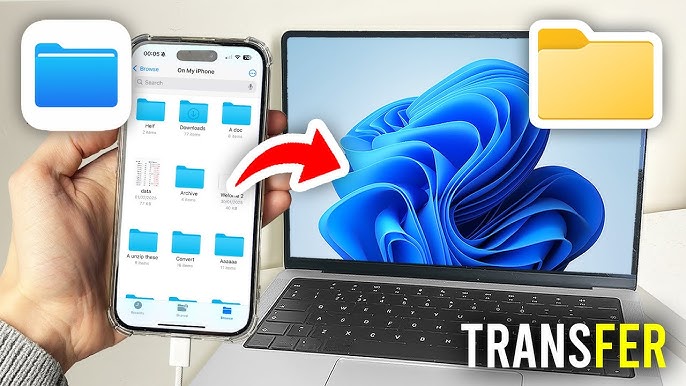
A few years ago, I needed to send some photos from my phone to my computer for a project. I thought it would be simple—but I ended up spending 30 minutes trying different cables, apps, and cloud services.
If you’ve ever struggled with transferring files, you know the frustration: slow transfers, unsupported formats, or cables that don’t work.
The good news? Moving files between your phone and computer doesn’t have to be complicated. With the right tools and methods, you can transfer photos, videos, documents, and more quickly and safely.
This guide covers all the easiest methods, step-by-step, for both Android and iPhone users.
Step 1: Decide How You Want to Transfer Files
Before starting, you need to choose the method that suits you best. The main options are:
-
USB Cable – Fast and reliable
-
Bluetooth – Wireless but slower
-
WiFi / Cloud Services – Convenient for large files or multiple devices
-
Email / Messaging Apps – Quick for small files
Each method has its advantages depending on file size, speed, and convenience.
Method 1: Transfer Files Using a USB Cable
This is usually the fastest and most reliable method.
For Android Phones:
-
Connect your phone to the computer using a USB cable.
-
Swipe down on your phone’s notification panel and select “File Transfer” or “MTP” mode.
-
On your computer, open File Explorer (Windows) or Finder (Mac).
-
Find your phone under Devices.
-
Navigate to the folder containing the files you want.
-
Drag and drop files between your phone and computer.
For iPhones:
-
Connect your iPhone to your computer using a Lightning cable.
-
On Windows, open iTunes or use File Explorer to access photos.
-
On Mac, open Finder (for macOS Catalina or later) or Photos.
-
Select the photos or files and copy them to your computer.
Tip: Always safely eject your phone after transferring files to avoid corruption.
Method 2: Transfer Files Wirelessly with Bluetooth
Bluetooth is slower than USB but works without cables.
How to Use Bluetooth:
-
Turn on Bluetooth on both your phone and computer.
-
Pair the devices:
-
On Android: Settings → Bluetooth → Pair with device
-
On iPhone: Settings → Bluetooth → Pair with Mac
-
On Windows: Settings → Devices → Add Bluetooth device
-
-
Select the files on your phone, choose Share → Bluetooth, and pick your computer.
-
Accept the transfer on your computer.
Best For: Small files like documents or a few photos.
Method 3: Use Cloud Storage Services
Cloud services are convenient if you don’t want cables or need access from multiple devices.
Popular options include:
-
Google Drive (Android & iPhone)
-
iCloud Drive (iPhone & Mac)
-
Dropbox
-
OneDrive
How to Transfer Files Using Google Drive (Example):
-
Install Google Drive on your phone and computer.
-
Upload files from your phone to Google Drive.
-
Open Google Drive on your computer and download the files.
Tip: This method works well for large files or multiple devices, but requires an internet connection.
Method 4: Transfer Files Using Messaging Apps or Email
If you only need to transfer small files, sending them via email or apps like WhatsApp, Telegram, or Messenger can work.
How to Do It:
-
Open the app on your phone.
-
Attach the files and send them to yourself.
-
Open the app on your computer and download the files.
Best For: Documents, PDFs, or a few photos.
Limitations: File size may be restricted (usually 25–100 MB per attachment).
Method 5: Use WiFi Transfer Apps
There are apps that allow wireless file transfer over the same network:
-
AirDroid (Android)
-
Snapdrop (Web-based, Android & iPhone)
-
SHAREit
-
Send Anywhere
Example Using Snapdrop:
-
Open snapdrop.net on both your phone and computer (same WiFi network).
-
Your devices appear automatically.
-
Click the device and select the file to transfer.
-
Accept the transfer on the other device.
Advantages: Fast, no cables, works for all file types.
Tips for Faster and Safer Transfers
-
Use USB for large files – It’s faster and more reliable than wireless methods.
-
Keep devices charged – Interruptions due to low battery can cause file corruption.
-
Avoid disconnecting mid-transfer – Always safely eject or confirm the transfer is complete.
-
Check file formats – Ensure your computer can open the files after transfer.
-
Organize files in folders – Makes it easier to find them later.
Real-Life Example
I needed to move 500 photos from my Android phone to my laptop.
-
Using Bluetooth would have taken over 2 hours.
-
USB cable transfer took only 15 minutes.
-
Later, I used Google Drive to access a few of the same photos on my tablet without moving the laptop around.
This shows that choosing the right method saves both time and effort.
Frequently Asked Questions (FAQs)
1. Can I transfer files without a USB cable?
Yes. You can use Bluetooth, cloud storage, WiFi transfer apps, or email for wireless transfers.
2. Why is my file transfer so slow?
Large files over Bluetooth or unstable WiFi can be slow. USB cables are usually faster.
3. Can I transfer all file types?
Most methods support common files (photos, videos, documents). Some cloud or email services may restrict certain file types.
4. Do I need an app to transfer files?
Not always. USB connections work without extra apps, but WiFi transfer apps make it easier and faster.
5. How do I avoid losing files during transfer?
Always confirm the transfer is complete before disconnecting. Keep a backup if files are important.
Conclusion: File Transfer Made Simple
Moving files between your phone and computer doesn’t have to be complicated. Depending on your needs:
-
Use USB cables for large files and speed
-
Use Bluetooth for small files without cables
-
Use cloud services or WiFi apps for wireless convenience
-
Use email or messaging apps for quick small transfers
With these methods, you can transfer files easily, safely, and quickly, whether for work, school, or personal use.